
How to configure WordPress for Daylight Savings Time (DST)
If your WordPress timezone is set to a UTC offset (such as UTC-5), you will need to manually update it twice a year when daylight saving time begins and ends. If you manage multiple sites this quickly becomes tedious. The good news is that WordPress handles daylight saving time automatically — as long as the timezone is configured correctly.
How to set your timezone correctly
- Log in to your WordPress dashboard as an administrator
- Go to Settings → General
- Find the Timezone field
- If it shows a UTC offset (e.g. UTC-5), change it to a city in your timezone instead — for example, America/New_York or America/Chicago
- Click Save Changes
Once set to a city, WordPress will automatically adjust for daylight saving time. You will never need to manually update it again.
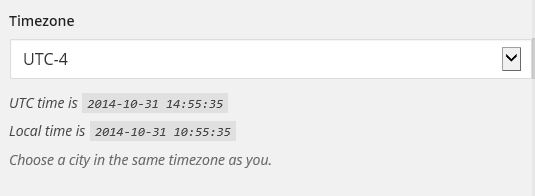
When set to a UTC offset, WordPress shows no daylight saving time information:
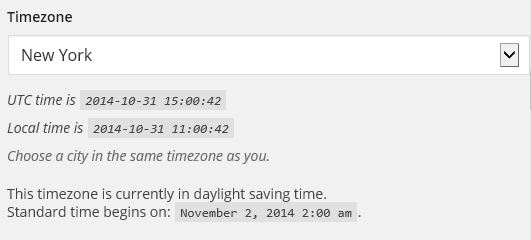
When set to a city, WordPress confirms whether daylight saving time is active and when the next change occurs:
Tip
The city dropdown is long. Start typing the name of your city and WordPress will jump to it automatically.
Other settings to check while you’re here
While you are in Settings → General, it is worth reviewing these other commonly misconfigured settings:
Site language
This controls the language of the WordPress dashboard and any theme or plugin text that supports translation. If your dashboard menus are appearing in the wrong language, this is where to fix it.
Date format and time format
WordPress defaults to a US date format (month/day/year). If your site serves an international audience or you simply prefer a different format, update this to match. It affects how dates and times are displayed in posts, comments, and widgets.
Week starts on
WordPress defaults to Sunday as the first day of the week. This affects calendar views and date pickers throughout the site, including in some booking and event plugins. If your business operates on a Monday-to-Friday week, setting this to Monday will make calendars display more intuitively.
No plugin needed
There are plugins available that claim to manage daylight saving time for you. If your timezone is already set to a city rather than a UTC offset, these plugins are unnecessary. We recommend removing them as most are outdated and no longer maintained.
Related articles
Need help managing your WordPress site? Glimmernet offers WordPress maintenance and managed hosting services.